Export Google Translate Saved Words to Flashcards (2026)
Open Saved on translate.google.com, export to Google Sheets, download the CSV, then build Anki cards with a free tool or by hand. Steps and formulas inside.
Google Translate has one documented export, Saved to Google Sheets on the website, and Google's help page describes no direct Anki or flashcard export. This applies to anyone signed in at translate.google.com on a computer, and the main caveat is that the sheet needs cleaning before it makes good cards. To export Google Translate saved words, open Saved, click Export to Google Sheets, download the sheet as a CSV, then build cards with a free converter or two spreadsheet formulas.
The steps below follow Google's help page as read in November 2026. Search results for this topic also show Google Cloud pages about exporting saved translations. Those cover Translation Hub, an enterprise product Google has since deprecated, and have nothing to do with your personal Saved list.
Where does Google Translate keep saved words?
Google Translate keeps saved words in a list called Saved, which you open from below the text boxes on the website. A word gets there when you sign in, translate it and click Star translation. Google says saved translations sync across your devices.
Words sitting in History are not in that list yet. Google's route is to click History, choose the entries in the right side panel, and click Star translation.
Being signed in matters. Google's help says that once you sign out of the app, you can only view on-device history. Older guides, such as this Dummies article, call the list Phrasebook.
Phones are the common stumbling block. Google documents the export steps for a computer, and the Fluent by Accident tool page covered later in this guide says the export is on the website, "not in the phone app".
| Place | What you can do | Export? |
|---|---|---|
| Saved on the website (signed in) | Find starred words, export the list | Yes, to Google Sheets |
| History on the website | Pick entries and star them | Star them first, then export from Saved |
| Phone app (signed in) | Saved translations sync with the website | No export step in Google's phone help. Use a computer |
| App, signed out | View on-device history only | No export documented |
How to export Google Translate saved words to Google Sheets
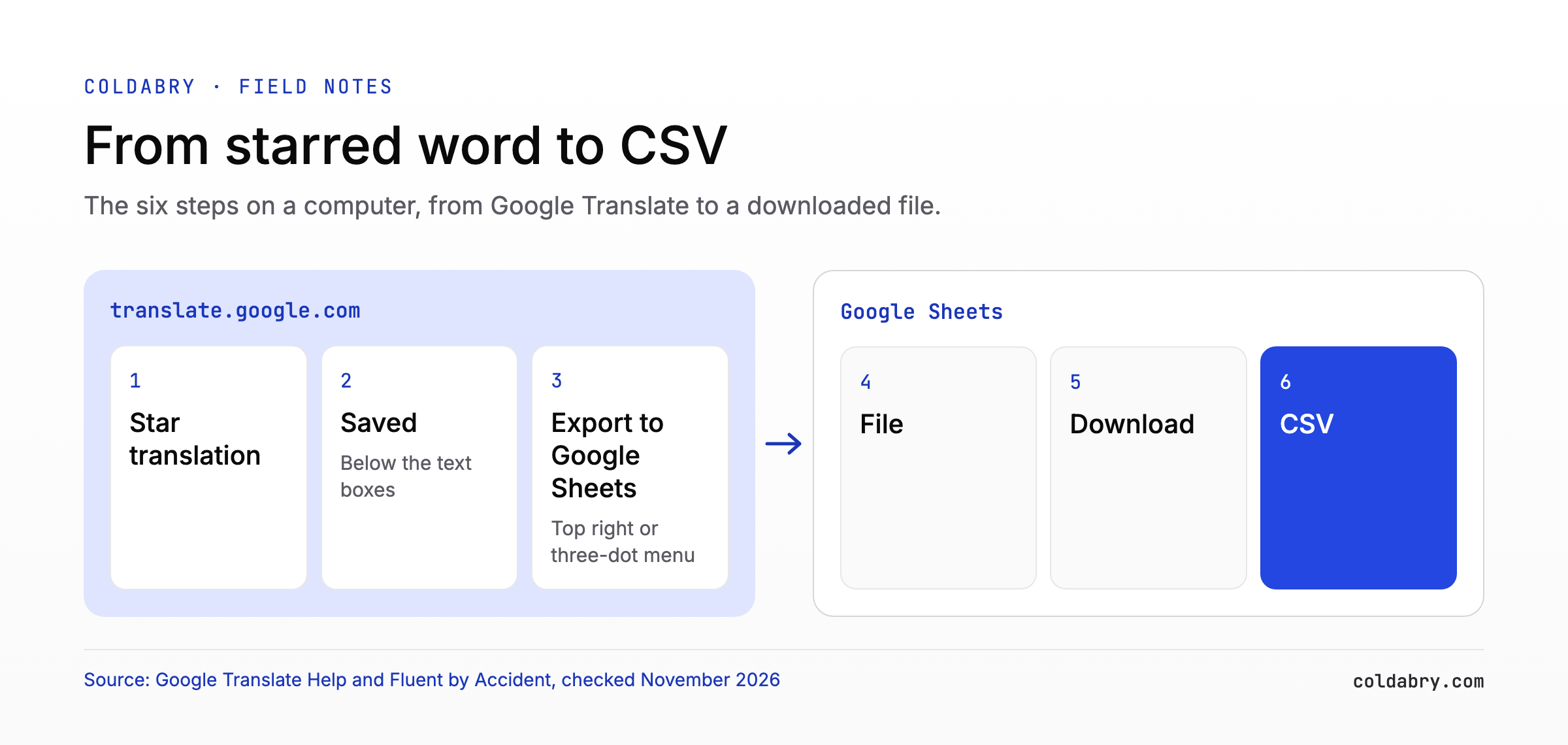
Exporting takes three steps on a computer. These are Google's own steps, as of November 2026:
- On your computer, sign in to Google Translate at translate.google.com.
- Below the text boxes, click Saved.
- At the top right, click Export to Google Sheets.
Your list is now a Google Sheet. To get a file that flashcard tools can read, choose File, Download, CSV inside the sheet.
Can't find the button? Two current pages disagree. Google's help says Export to Google Sheets sits at the top right of Saved, while the Fluent by Accident tool page says to click the three dots first. Neither page is dated, so look at the top right of Saved, then open the three-dot menu.
What does the Google Translate export give you?
The export gives you four columns: source language, target language, your text and the translation. That description comes from the Fluent by Accident tool page, because Google's help page says nothing about what the sheet contains. No audio or example sentence column appears in that list, so expect bare word pairs.
Those four columns make poor cards as they stand, for three reasons:
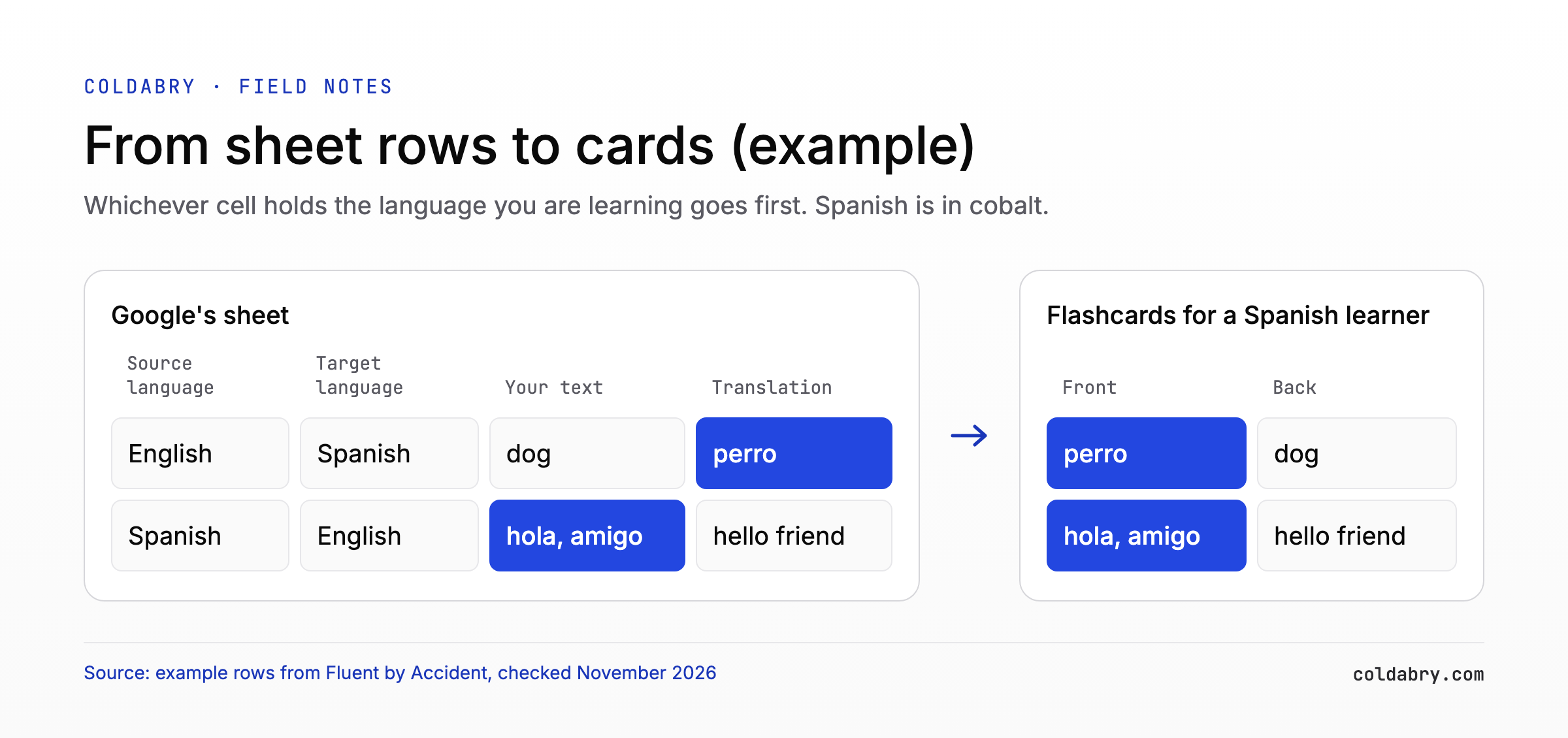
- Direction changes row by row. A word you looked up from English to Spanish has the Spanish in column D. A word you looked up from Spanish to English has it in column C. Imported as is, the language you are learning jumps between the front and the back.
- Language pairs are mixed. If you saved French and Spanish words, a Spanish deck has to leave the French rows out.
- Two columns are labels. The language names tell a converter how to sort a row, but they do not belong on a card.
The fix is one rule: whichever cell holds the language you are learning goes first. The example below uses the sample rows from the tool page, for a Spanish learner.
How to turn Google Translate saved words into Anki cards for free
Google documents no route from the sheet into Anki. An Anki Forums user asked for it in November 2021 and wrote in April 2022 that nothing suggested so far imported words already saved. That is one user's report, and the thread closed in 2023.
The main free method today is Fluent by Accident's Google Translate to Anki converter. Its page lists these steps:
- Export your list to Google Sheets, as in the section above.
- In the sheet, choose File, Download, CSV, and drop the file on the tool page. You can also select all cells and paste them.
- Pick the language you are learning.
- Download the Anki deck (an .apkg file), an Excel file or a CSV.
According to the page, the tool handles the two problems from the last section. Words translated in either direction are turned so the target language sits on the front. Rows that do not include your target language are left out, and you run it again with another language to get those.
The page lists it as free with no sign-up. It also states that your file is read by your browser and never sent to a server. That is the page's own statement.
Its limits are simple. You still need Google's export step on a computer, each run covers one language, and the page's examples show a front and a back only, so do not expect audio or example sentences.
| Input | Your choice | Output |
|---|---|---|
| Google's sheet as a CSV, or pasted cells | The language you are learning | Anki deck (.apkg), Excel or CSV |
| Example row: English, Spanish, dog, perro | Spanish | Front: perro. Back: dog |
| Example row: Spanish, English, hola, amigo, hello friend | Spanish | Front: hola, amigo. Back: hello friend |
| A row with no Spanish in it, such as French and English | Spanish | Left out. Pick that language in a second run |
How to import Google Translate words into Anki manually
The manual route needs two formulas and one small text header, and it gives you full control of the file. This example is for a Spanish learner, with the sheet in columns A to D. Use the exact language name shown in your column A.
Put these formulas in row 1 and fill them down. If row 1 is a header, start at row 2.
E1: =IF(A1="Spanish",C1,IF(B1="Spanish",D1,""))
F1: =IF(A1="Spanish",D1,IF(B1="Spanish",C1,""))
Column E now holds the Spanish and column F its translation, whichever way you looked each word up. Rows with no Spanish in them come out blank. A Spanish to French row stays, with French on the back, so delete it if you want English backs only.
Then finish the file:
- Copy columns E and F, and paste them as values into a new tab.
- Delete the blank rows.
- Download that tab as a CSV.
- In Anki, create the deck you want to import into.
- Optional, for Anki 2.1.54 or later: open the CSV in a text editor and add the header block below at the top.
- Import the file into Anki and check the preview.
#separator:Comma
#html:false
#notetype:Basic
#deck:Spanish
#tags:google-translate
The Anki manual explains what each line does. separator sets the field separator, html sets whether the file is treated as HTML, and tags adds a tag to every imported note. notetype and deck preset those choices only if they already exist, which is why step 4 comes first.
Anki reads the number of fields from the first line that is not a comment, and extra content on later lines is not imported. Two columns therefore give you Front and Back on a Basic note.
If Anki guesses the separator wrongly, change it in the import window and look at the preview again. In the sample rows, "hola, amigo" contains a comma, so that kind of row is the one to check.
Encoding: Anki expects UTF-8 files, and accents or non-Latin scripts depend on it. If your text editor offers an encoding choice when you save the header, pick UTF-8.
Can you send Google Translate words to Quizlet or other apps?
Yes, and most routes start from the same sheet. Each one below takes a different amount of effort.
- Quizlet: a third-party walkthrough pastes the translations from the sheet into a new Quizlet set and selects Tab as the delimiter. That is a personal blog, not Quizlet's documentation.
- Clozemaster: 2021 forum advice from a user says to put the sentence in the language you study in the first column of the CSV and the translation in the second. Columns E and F from the manual route already have that shape.
- Fluent by Accident flashcards: Fluent by Accident also has a Chrome extension that imports your Saved list into its own flashcards in one click, with no sheet. Its pricing page sets the limits: Chrome on desktop only, a free account required, up to 20 saved words on the Free plan, and Pro at $49 per year for unlimited words. There is no mobile app, so the flashcards open in your phone's browser.
- Other Chrome extensions: Translate Buddy and Anki Translate Card save new lookups, which is a different job from moving an existing list. Translate Buddy's listing says "Translate and save new words to learn later. Save to Anki" and was last updated in June 2022. Anki Translate Card's says "Select a word → right-click → Anki flashcard with translation, examples, and context". Neither overview mentions importing a saved list (Chrome Web Store, checked November 2026).
A 20-word cap means a long Saved list needs Pro on the extension route. The tool page lists no word limit for the free converter, and the manual route depends on no plan at all.
| Route | Flips direction | Best for |
|---|---|---|
| Google Translate to Anki tool | Yes | An Anki deck with the least work |
| Manual formulas | Yes, through the formulas | Full control of the file |
| Quizlet paste | Not in the walkthrough | A quick set from the sheet |
| Clozemaster CSV | You arrange the columns | People already studying there |
| Fluent by Accident extension | Not stated on the pages read | Skipping the sheet on desktop Chrome |
How do you update the deck without duplicates?
Keep the target word in the first field and re-import the whole list. Anki's manual says the first field decides whether a note is unique when importing text files. By default, a row whose first field matches an existing note of the same type updates that note's other fields. A drop-down in the import screen changes this, either to ignore duplicates or to import them as new notes.
Anki's manual adds that notes updated this way stay in their current decks and keep their scheduling, so re-importing does not reset your reviews.
That gives you a four-step routine:
- Export Saved to Google Sheets again.
- Clean it the same way, with the target word in column one.
- Import with the same note type and the default setting.
- Review, and keep starring new words.
Two cautions apply. If you edited card backs inside Anki, the default setting replaces them with what is in the file, so pick the ignore option in the drop-down to keep your edits.
Also, the manual's rule is written for text files. If your deck came from the tool's .apkg, its notes use a note type called Fluent by Accident Basic, so choose that type when you import a CSV, or Anki will treat every word as new. The tool's CSV also starts with a Front,Back line, so delete it first.
This routine is small, but it has the shape of a product. As an illustration, a language teacher or creator whose students all keep word lists could offer the export, cleanup and deck as one member tool, with their own notes added on top. Before building anything like that, it helps to know when a small custom app beats off-the-shelf software, how to go about picking automations that pay for themselves, and what replacing manual internal routines with agentic workflows looks like. Coldabry builds custom apps for your own audience and custom AI automation for repeat data work.
FAQ
Can I export Google Translate saved words from the phone app?
Not according to the pages checked for this guide. Google's help documents the export under its Computer instructions, and the Fluent by Accident tool page says the option is on the website, not in the phone app. Your words still reach the website, because Google says saved translations sync across your devices. Keep starring words on your phone, then sign in to translate.google.com on a computer with the same account and export from Saved. Google's Android and iPhone help pages list no export step.
Why don't I see Export to Google Sheets?
Check three things in order. First, make sure you are signed in, because Google's steps start there. Second, confirm you opened Saved, below the text boxes, and not History. Third, look in both reported spots: Google's help says the top right of Saved, while the Fluent by Accident tool page says a three-dot menu at the top of the Saved panel. If you are on a phone, move to a computer, since Google's export steps are written for one.
Does Google Translate export directly to Anki?
No direct Anki export is documented. Google's help page describes one export, to Google Sheets, so Anki always comes after a step in between. Download the sheet as a CSV, then use a free converter that outputs an .apkg deck, or reshape the columns yourself and import the result as text. The Anki manual says any plain text file with fields separated by commas, semicolons or tabs can be imported, provided it meets the conditions listed there, including UTF-8 encoding.
Is Phrasebook the same as Saved in Google Translate?
For practical purposes, yes. Older guides, including this Dummies article, use Phrasebook for the list of translations you keep, and they mention an export icon. Google's current Computer instructions use the word Saved for that job: you star a translation, then find it below the text boxes. Google's iPhone help page still says Phrasebook in one tip. If a tutorial tells you to look for a Phrasebook icon, treat it as dated and follow the Saved path instead.
Will importing my list again create duplicate cards in Anki?
Not with the default setting, as long as the first field matches and the note type is the same. The Anki manual says a matching text file row updates the existing note's other fields, so old words are refreshed and new words are added.
Keep the match scope setting on note type, because note type and deck only flags duplicates in the deck you are importing into. Duplicates also appear if you import them as new notes, if a word moves to a different field, or if you import a CSV as Basic over the tool's .apkg deck, whose notes use the type Fluent by Accident Basic. If you edited card backs in Anki, choose to ignore duplicates.