Best Chrome Extensions to Translate Web Pages and Learn
Google Translate reads a page for you and Immersive Translate keeps the original visible. To keep what you look up, compare these five Chrome tools.
For reading a foreign page, Immersive Translate fits best because the original stays on screen; for keeping what you look up, choose Mate Translate's free Phrasebook or Fluent by Accident's flashcards, and note that Fluent by Accident does not translate whole pages.
This guide to Chrome extensions to translate web pages is for people who read in a language they are learning. It compares five Chrome translation tools on one question: can you keep what you looked up? Everything here comes from public pages checked on November 5 and 6, 2026, not hands-on tests, so use it as a shortlist to try yourself. There is no overall winner, because reading a page and keeping a word are different jobs.
What are the best Chrome extensions to translate web pages for learning?
The best choice depends on which job you need done. Lists of translators usually rank how well a tool reads a page for you, and lists of learning tools usually skip the general translators. The table puts both groups side by side.
| Tool | Reading a page | Keeping a lookup | Plan |
|---|---|---|---|
| Google Translate (built into Chrome) | Chrome translates the page; switch back to compare | Chrome's help lists none; Translate site: star, then export to Google Sheets | Free |
| DeepL | Selected text; full page on Pro, per DeepL; Show original returns to the source | Not listed on its Chrome page or the other pages we checked | Free web use with text and file limits; Pro raises limits |
| Immersive Translate | Bilingual by default, translation-only optional | Not listed on the pages we checked | Free bilingual pages; Pro adds quotas; engines have limits |
| Mate Translate | Popup, tooltip, Shift+T, right-click, manual full page | Free local History and Phrasebook; Pro adds sync and CSV export | Free forever extension; Pro |
| Fluent by Accident | Selected text only, no whole-page translation | Saves to flashcards with spaced repetition; CSV import and export | Free up to 20 words; Pro $49 a year or $6.99 a month |
Sources, all checked November 5 and 6, 2026: Immersive Translate's toplist and its DeepL comparison, both vendor-written, for the first three rows; Chrome Help and Translate Help for Google saving; DeepL's Chrome extension page for the DeepL row; Mate's plan help page; Fluent by Accident's plan list. We did not check competitor prices, so the table gives the tier type only.
"Not listed" means we found no saving feature on those pages, not that the tool cannot save words. For Google, Chrome's help page says nothing about saving, while Google Translate Help says you can sign in on the Translate site, star a translation and export it to Google Sheets. Neither page connects the two, so we cannot say a word translated in Chrome reaches that list. For DeepL, we read its Chrome page, not its help pages, so check those too.
What happens to a word after you translate it?
A lookup has three possible stages, and most translation features are described only for the first one:
- Read: you understand the sentence in front of you.
- Save: the word or phrase lands somewhere you can find it tomorrow.
- Review: it comes back to you without you building a list by hand.
Here is where a lookup ends up in each tool, per the pages we read. Google's lane covers Chrome's translation and the separate Translate site.

Of these five, only Fluent by Accident lists a review step on the pages we read: flashcards with spaced repetition. For scheduled review in Mate, check its other help pages.
You can run this test on any extension in a few minutes. Look up one word, close the tab, and come back the next day. If you can find the word without searching your browser history, the tool passes the save stage; if it shows up in a review session you did not set up, it passes the review stage as well.
Is Google Translate or DeepL enough to read a foreign page?
Yes, for reading. Immersive Translate's list describes Google Translate as free consumer translation across text, web, camera, photos, handwriting, speech and conversations, with Chrome translating the page and a switch back to the original for comparison. It describes DeepL as offering selected-text and full-page translation, with Show original to return to the source page. DeepL's own Chrome page is more specific: you select text and click its icon, and "DeepL Pro subscriptions unlock full-page translation, unlimited characters, and more".
The catch for a learner is what happens to the foreign text. Immersive Translate's comparison page says DeepL has a replace mode "where the original text is overwritten by the translation", and it says free use is subject to text and file limits. The page dates those claims to June 2026. That page and the list are written by a competitor, so read Google's help pages and DeepL's own pages before you rely on any detail.
When a translation replaces the text, you get the meaning and lose the sentence you were trying to learn. That is a good trade for a contract or a news story you only need to understand. It is a poor one for a page you chose as practice.
Note: Switching back is the habit that makes a replace-style translator useful for study. Read a paragraph in the original first, translate only when you are stuck, then return to the original and read it again. Chrome's switch back and DeepL's Show original both allow this, at the cost of a step every time.
How do you see a web page in two languages at once?
Use a bilingual view, which is the main reason to pick Immersive Translate. Its list says "Original paragraphs stay visible with translations below them", and bilingual display is the default. Its strength as a reading tool is that you never leave the foreign sentence. Its comparison page lists hover translation too, for both Immersive Translate and DeepL.
Three details matter before you install it:
- Leave translation-only mode off. It is optional, and it hides the original, which removes the reason to use this tool for learning.
- Read the free tier closely. The vendor offers free bilingual webpage translation and adds that this "does not mean every engine is free or unlimited". Pro adds higher quotas for OCR, PDF, video, image and premium engine use.
- Check other browsers if you need them. Its comparison page lists Chrome, Edge, Firefox, Safari, iOS and Android, among others.
All of that is the vendor describing itself. None of the three Immersive Translate pages we read, including its docs introduction, mentions saving words, so plan on a separate place for vocabulary unless its own help pages show otherwise.
Can you save translated words in Chrome?
Yes. Mate Translate and Fluent by Accident list saving in the extension, each differently. Google lists it on its Translate site, not for Chrome's page translation. The DeepL and Immersive Translate pages we read list none.
Mate Translate's help page, last updated September 6, 2026, lists a free local History and Phrasebook alongside manual full-page translation. One extension covers whole pages and saved phrases. Sync and CSV export are Pro, so a free Phrasebook stays local until you upgrade.
Fluent by Accident takes the narrower route. It is a Chrome extension built mainly for streaming subtitles, and it also translates and saves selected text on any website, sending it to flashcards with spaced repetition, which schedules cards for review. Its free and Pro limits are published, and these are the ones to weigh:
- No whole-page translation. You select the text you want. For a full page, you need one of the other tools.
- Chrome on desktop only. Other browsers are not supported yet.
- Account required. The extension asks you to sign in with a free account when you install it.
- No mobile app yet. Flashcards open in your phone's browser.
- No AI on the free plan. AI example sentences and emoji hints on cards are Pro features.
| What you get | Mate Translate | Fluent by Accident |
|---|---|---|
| Free saving | Local History and Phrasebook | Up to 20 words, as flashcards with spaced repetition |
| Export | CSV export on Pro | CSV import and export on Free |
| Sync | History and Phrasebook sync on Pro | Sync across devices listed on Pro; flashcards are a web app you open in a browser |
| Whole-page translation | Manual on Free, automatic on Pro | Not available |
| Paid additions | Phonetic transcription, noun genders, voice input in the popup | Unlimited saved words, AI example sentences and emoji hints on cards |
| Paid price | Not checked; see Mate's site | $49 a year or $6.99 a month |
A separate group of learner tools is built around saving. According to Web Highlights' comparison, a ranking its author's own product wins, Readlang saves every word you look up "with its original sentence", Reverso sends lookups "straight into a phrasebook with flashcards", and Rememberry saves a word as a flashcard in one more click and moves decks out as CSV files. We did not read those tools' own pages, so confirm each claim before you commit.
How fast do you hit a free saved-word limit?
At 15 saved lookups a week, a 20-word free limit runs out in week 2. This is a worked example with assumed habits, not a usage figure: 5 saved lookups per article and 3 articles a week.
- Weekly saves: 5 x 3 = 15.
- Running total: 15, 30, 45 and 60 words over weeks 1 to 4.
- When the cap arrives: 20 / 15 = 1.33 weeks, which falls in week 2.
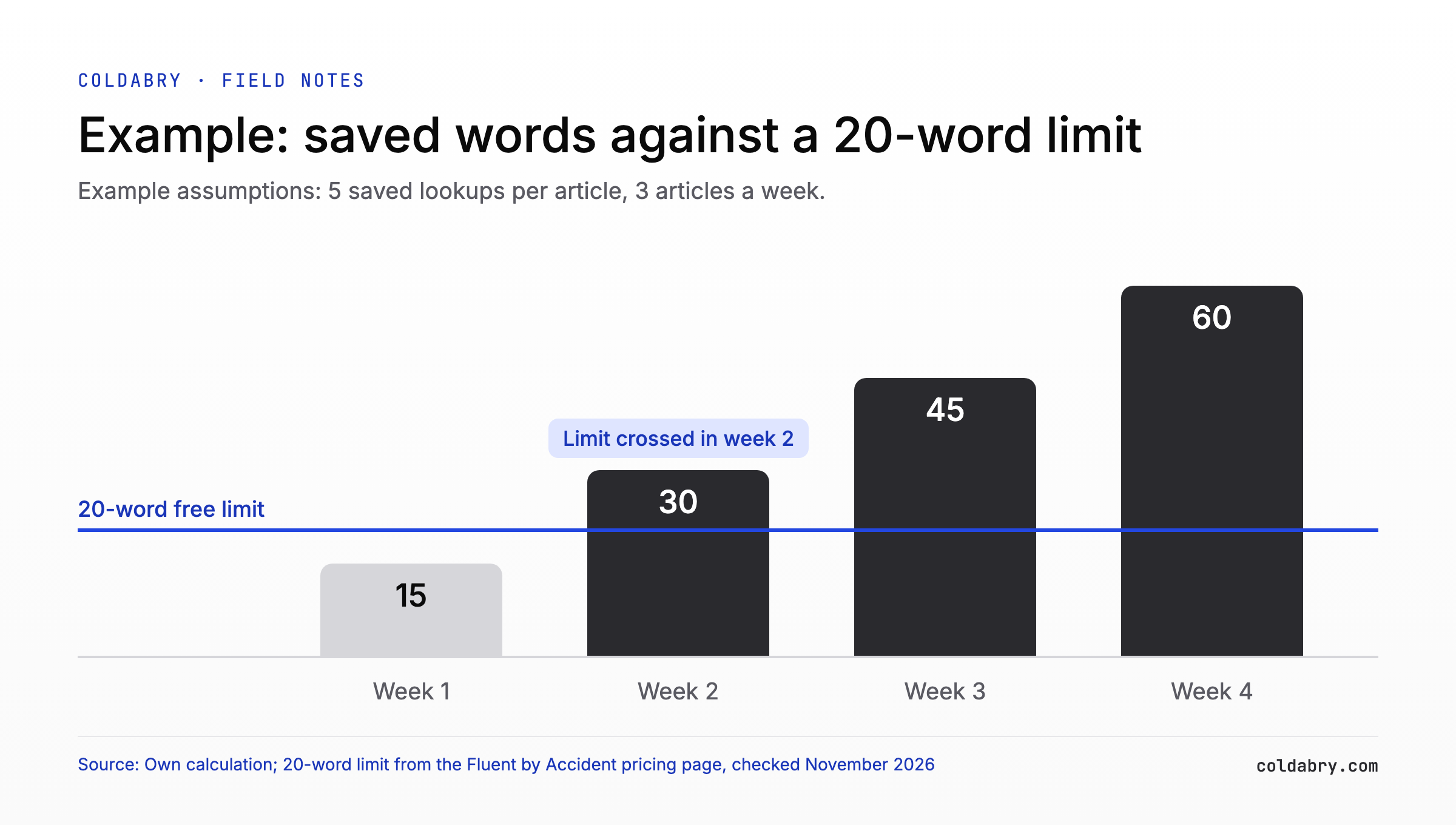
The rule is the same for any tool with a cap: divide the limit by your weekly saves. At 5 saves a week, the same 20 words last 4 weeks.
Hitting the limit on Fluent by Accident does not lock your cards. Its pricing page says they stay and you can keep reviewing all of them; to save new words, you upgrade to Pro or delete cards you have learned. Deleting learned cards keeps the free plan usable if you save only a few items a week.
If you keep the same pace for a year, here is what the paid plan works out to, using the prices in the tables above:
- Words in a year: 15 x 52 = 780.
- Cost per word on the yearly plan: $49 / 780 = about 6 cents.
- Yearly against monthly: $6.99 x 12 = $83.88, so paying yearly saves $34.88.
Save fewer words and the cost per word rises, so run the numbers with your own count. The same arithmetic applies to any paid tool once you have checked its current price.
How do you choose a translation extension for learning?
Ask six questions before you install anything, and answer them from the tool's own help or pricing page. A tool does not need to pass all six. It needs to pass the ones that match how you study.
| Question | What a good answer looks like |
|---|---|
| 1. Does the original stay visible? | Both languages stay on screen, or one click brings the original back. |
| 2. Can I save a phrase, not only a word? | Selected text can be saved, so collocations and short expressions survive. |
| 3. Is the sentence kept with it? | The saved item keeps its source sentence, as Web Highlights reports for Readlang. |
| 4. Does it come back for review without me building a list? | Saved items become cards on a review schedule, without a separate step. |
| 5. Can I export it? | A CSV export exists, and you know whether it sits on the free or the paid plan. |
| 6. What happens at the free limit? | The rule is published, and what you already saved stays available. |
Then try a short routine. This is a suggestion, and we make no promise about results:
- Read with the original visible.
- Look up only what blocks the meaning.
- Save a few items from each article.
- Review them before you open the next article.
The routine works with two tools as well as one. You could read with a bilingual view and save with a separate extension, as long as you accept two installs and, for Fluent by Accident, a sign-in.
Could a language teacher give students this in their own app?
Yes, and it is worth doing only when your method is the product. If your students just need to read and save words, the tools above already cover that, and a build would duplicate them. The guide on when a custom app beats an off-the-shelf tool walks through that decision.
A language coach with an audience has a different case when the value is in the material: graded readings, a word list per course level, review rules tied to lessons. Then the read, save and review loop can live inside a paid member product instead of a third-party extension. Scope the first version around that one loop, and see how a focused custom app ships in weeks and picking automation with a real return for the planning side.
Illustrative example: A teacher sells a reading course for intermediate learners. Students open a graded article in the course app, tap a word, and it joins that week's review set. The teacher sees which words the class saves most and plans the next lesson around them.
Coldabry builds custom AI apps for your own audience and AI agents that run inside your product, and the client owns what gets built.
FAQ
How do I translate a web page in Chrome?
Chrome can translate a page on its own, and you can switch back to the original to compare, according to Immersive Translate's list. For more control, an extension adds options. DeepL's extension translates selected text, with full-page translation on Pro, Immersive Translate shows bilingual pages by default, and Mate Translate lists a popup, tooltip, Shift+T shortcut, right-click item and manual full-page translation on its free extension. If you are learning the language, pick a method that keeps the original text in view or lets you return to it quickly.
What is the best free Chrome extension to translate a web page?
It depends on the job, and no single tool wins both. For reading while learning, Immersive Translate offers free bilingual webpage translation, although the vendor says not every engine is free or unlimited. For reading and keeping lookups in one free extension, Mate Translate lists manual full-page translation plus a local History and Phrasebook. Chrome's own page translation is free too. This comes from public pages checked in November 2026, not hands-on tests, so try your top two on a real article.
Can I see the original and the translation side by side?
Yes: Immersive Translate's comparison page lists bilingual side-by-side and translation-only modes, and its list says original paragraphs stay visible with translations below them by default, both vendor-written. Google Translate in Chrome and DeepL are described on those same pages as switching between the translated page and the original, so on a fully translated page you see one language at a time. Translating only selected text leaves the rest of the page in the original. If seeing both at once matters for your study, leave Immersive Translate's translation-only mode off.
How do I turn translated words into flashcards?
Use a tool that creates cards as you save. Fluent by Accident translates and saves selected text from any website into flashcards with spaced repetition, with up to 20 words on the free plan. Web Highlights reports that Reverso offers a phrasebook with flashcards and that Rememberry saves a word as a flashcard, though we did not read those tools' own pages. Mate Translate's help page lists a Phrasebook, with CSV export on Pro. Check whether cards are created for you or whether you need to build them yourself.
Does Fluent by Accident translate whole web pages?
No. Fluent by Accident translates and saves text you select on a website, and it does not translate a whole page at once. If you need a full page in another language, use Chrome's own translation, DeepL with a Pro plan, Immersive Translate or Mate Translate for that job. Fluent by Accident works in Chrome on desktop, needs a free account, and saves up to 20 words on the free plan, according to its pricing page checked in November 2026. It fits someone who reads mostly in the original and only wants to keep the words they look up.